
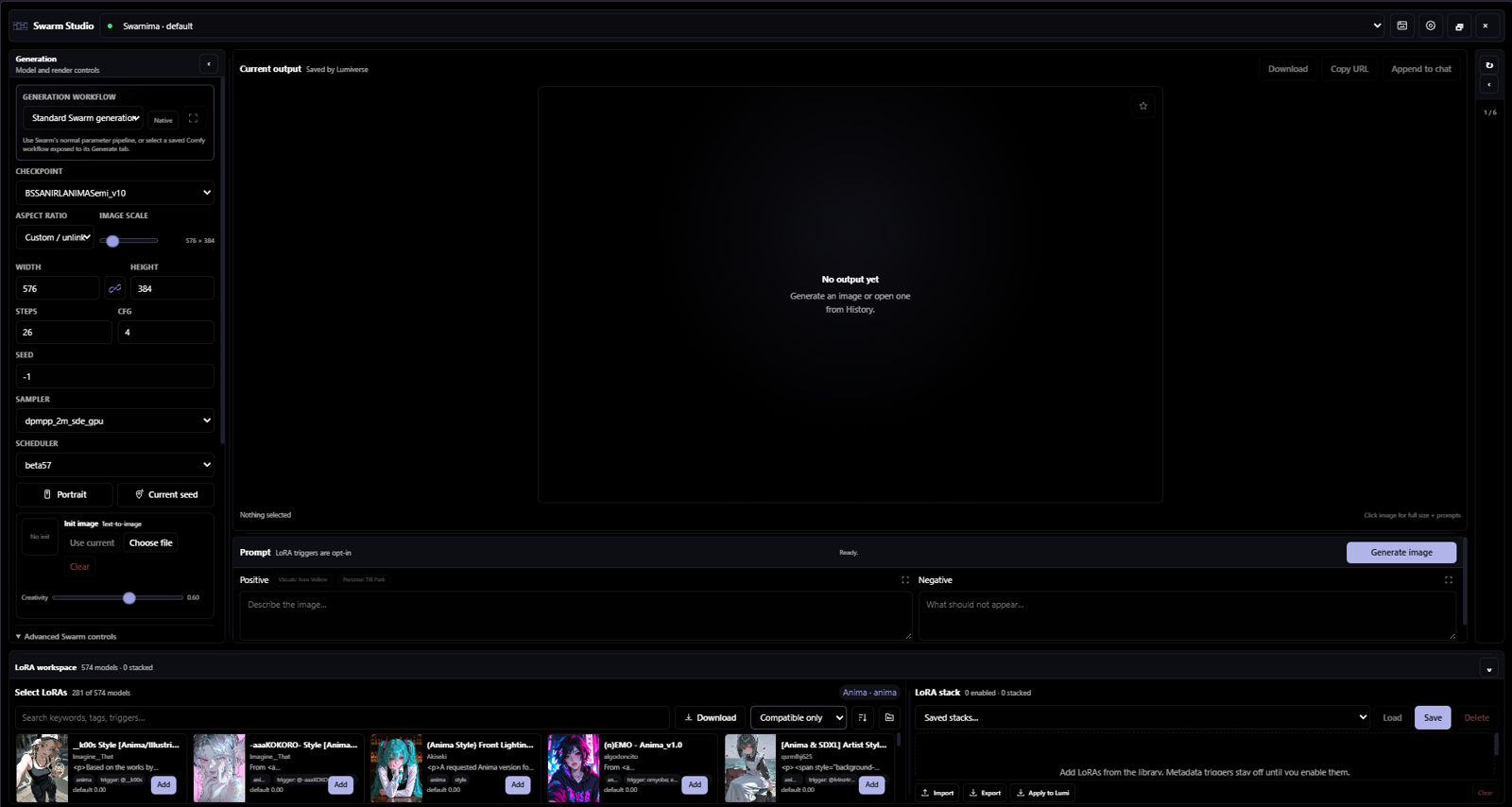
A responsive SwarmUI workspace with live previews, mobile quick actions, shareable LoRA stacks, Lumiverse chat integration, img2img, workflows, output folders, and fullscreen inspection.
About
Swarm Studio is a Spindle extension that puts a full SwarmUI prompting workspace inside Lumiverse without replacing Lumiverse's existing inline image controls.
It adds:
A desktop workspace with collapsible and draggable generation, history, prompt, LoRA-library, LoRA-stack, and bottom-dock boundaries, plus an optional fullscreen mode; fullscreen, collapse states, mobile tab, and custom pane sizes survive closing Studio
A phone-first fullscreen interface with combined Create + Prompt, Tune, LoRAs, Stack, and History tabs
One-tap mobile Use as init, context-aware Random/Current seed, and Append to chat actions below the Create prompts, with Library beside Settings in the header
A Lumiverse-native profile plus an automatic Custom state for component colors, panel geometry, opacity, blur, and CSS overrides
A full appearance editor with native component color pickers, border-radius, surface-opacity and backdrop-blur sliders, plus persisted custom CSS
A compact opaque settings panel containing appearance controls, metadata refresh, and the encrypted metadata token
Positive and negative prompting, checkpoint selection, chain-linked aspect-ratio sizing, steps, CFG, seed, live sampler/scheduler lists, ordered Swarm preset stacking, in-app Swarm preset management, model-component overrides, and raw request JSON
Saved SwarmUI/ComfyUI workflows presented through a focused setup modal: choose a workflow, edit the grouped parameters its author exposed, upload workflow image inputs, and generate without touching the node graph
Context-aware orientation and seed actions that flip to the useful next state, with fixed-seed reuse from the selected output
A multi-keyword searchable LoRA library read directly from SwarmUI's official
ListModelsAPI, filtered against the selected checkpoint'scompat_class, and navigable through a persistent directory-tree sidebar built from Swarm's relative model pathsLoRA preview images and inherited metadata: title, author, description, tags, architecture/compatibility, usage hints, trigger phrase, and default weight
Ordered visual LoRA stacking with square metadata previews, per-item enable/disable, weights, opt-in trigger phrases, reorder controls, reusable saved stack presets, and one-click materialization of a Swarm preset into editable Studio controls
Shareable Studio stack JSON, direct in-app application to Lumiverse Image Gen LoRA presets, and an in-Studio, progress-aware SwarmUI downloader for selected missing LoRAs or pasted/dropped Civitai and Hugging Face links
A prompt-header generation action on desktop and a persistent mobile generation action
Native Lumiverse expanded text editors for Studio and Quick Create positive/negative prompts, including the host's macro-aware editing tools
An aspect-aware output stage that follows the requested dimensions and then the actual returned image
A click-to-zoom full-size output inspector that resolves the exact Swarm path metadata before showing rendered positive/negative prompts, preset provenance, timing pills, render settings, LoRA stack, and Reuse Parameters / Use as init image actions
One-click output starring from the current stage or inspector, a protected Favorites collection that preserves ordinary folder membership, and bulk Favorite / Unfavorite plus non-starred-only page selection in Library
Original SwarmUI output downloads (preserving embedded image metadata when Swarm exposes the saved path) and a live
{{last_genned}}macro for HTML artifacts and presetsOpt-in
<swarm-image>message tags with a requiredrequest="generate"marker, a server-persisted 0–6 required-image range per reply (0–0keeps model discretion), selectable Multi-character / ensemble and Character-only / POV composition guidance, and an optionalcharacter="none"scenery/object mode; completed tags begin generating without a chat-shifting progress strip, failures leave an aspect-aware retry placeholder, and finished outputs become permanent container-filling Lumiverse images while syncing back into Studio without taking over Studio's own Generate/Interrupt statePersistent per-image illustration actions: hover/focus on desktop or tap the visible touch overlay to regenerate with a fresh random seed using current/original settings, edit and immediately confirm the prompt in Quick Create, or open the output library; right-clicking the finished image opens the same menu, including inside nested or regex-rendered HTML through composed-path event delegation
Regeneration lifecycle ownership keyed by both the stable inline-image job and its fresh per-attempt generation ID, so current/original/edited retries retire Studio and Quick Create progress together instead of leaving either surface stuck on Stop generation
Automatic prompt-context cleanup that leaves stored chat and visible images untouched while replacing completed Studio figures, appended Lumiverse image Markdown, and embedded image data with short semantic breadcrumbs; only the six newest illustration descriptions remain in outbound history
Character visual canon stored inside Library folders: the identity checkpoint, base positive/negative prompts, and LoRA stack now own named Looks with inheritable outfit/negative/checkpoint/LoRA overrides, aliases, triggers, reference/init image, thumbnail, and notes;
look="formal"selects one explicitly and prose can infer a named look from its aliasesA Lumiverse-native Visuals character-editor tab (on hosts with PR #268 surfaces) showing
Visuals ✓ · N looks, Look cards, activation, and the complete Look editor without leaving the character workflowOne dedicated Visuals drawer page with Character, Persona, and Lore tabs. Character and persona identities retain their existing binding editors, while Lore layers visual metadata onto native world-book entries without registering a second competing sidebar tab
The Lore tab prioritizes entries activated in the current chat, then lists the remaining native lore entries. Positive/negative tags, exact checkpoint overrides, LoRA stacks, preferred aspects, enablement, and bounded reference-image conditioning feed tagged generation; aliases are explicitly identified as descriptive metadata because native lore keys control activation
Prompt/profile macros for HTML and authored presets:
{{char_profile}},{{user_profile}},{{char_base}},{{persona_base}},{{swarm_negative}},{{swarm_preset}},{{swarm_checkpoint}},{{swarm_aspect}}, and{{swarm_image_protocol}}Auto-fit full-screen inspection with non-overlapping actions and manual zoom controls
SwarmUI img2img through Lumiverse's provider, with local image selection, current-output selection, and a Creativity/denoise control
A paged, chat-scoped two-column history with compact square mobile previews and per-image Reuse / Use as init / Append to chat / Delete menus
A folder-first fullscreen output Library landing page with isolated preview cards for All, Unfiled, Favorites, and custom/character folders; opening a folder replaces the landing with its paged image grid and an above-grid folder toolbar
A true sibling Prompts & visuals modal with roomy base prompt fields, checkpoint/LoRA controls, and an extensible named-Looks card region instead of the former inline details strip
iPhone-safe Output Library navigation with notch/browser-chrome padding, a non-shrinking 44px header close target, two-column folder and image grids, and a full-width responsive visual editor
A full-height, negative-space drawer composition with the picture-frame emblem, disjointed corner ornaments, serif wordmark, and direct Open Studio / Open Library actions
Lumiverse output deletion from the inspector, history menu, or bulk library selection
Live SwarmUI/ComfyUI progress frames and a step-aware progress bar through
spindle.imageGen.generateStream()when available, plus a persistent Interrupt generation actionA draggable two-state Lumiverse float player: a square image orb and a full Quick create panel. Its single visible surface mounts above Lumiverse's zero-height mobile body without leaving a ghost host widget, keeps its box exactly synchronized with the 64px orb across responsive transitions, stays beneath Lumi drawers/modals, and hides while Studio is open; it survives closing Studio, generates from editable lightweight prompts, follows live previews and step progress, can append the latest output to chat, and turns its stable Generate action into Stop while rendering
Shared float-player/Studio output and draft state, so Quick create inherits the last model, dimensions, sampler, scheduler, presets, LoRAs, workflow, init image, and overrides—and the full Studio restores them when it reopens
The drawer’s picture-frame wall emblem reused consistently in the float player, Studio header, drawer registration, and chat input action
Generation goes through spindle.imageGen.generateStream() when the installed
Lumiverse runtime exposes it, with a clone-safe spindle.imageGen.generate()
fallback for older runtimes. Both paths continue to use the SwarmUI connection,
encrypted secret, persistence, and ownership behavior already managed by
Lumiverse.
Version and source
2 details · 1 link
Details
1.0.16
0.15.8
Links
What it adds
5 additions
- 4
Character editor tab: Visuals
Drawer tab: Swarm Studio
Float widget
Input bar action: Open Swarm Studio
- 1
Prompt interceptor
Permissions
12 permissions
Granted on install
Read, add, change and hide chat messages.
Open floating widgets and docked panels.
Needs an admin to approve
Generate images with your image connections.
Send web requests through your Lumiverse server.
Read, upload and delete your stored images and videos.
Compatibility
Swarm Studio 1.0.5 requires Lumiverse 0.15.8 or newer. The core drawer,
generation modal, and library register before optional host integrations so an
unavailable newer API cannot remove the entire extension UI.
Lumiverse builds without messages.registerTagInterceptor() can still use
Studio normally; only automatic in-message <swarm-image> interception is
disabled, with a compatibility warning written to the browser console. Remote
phones may access Lumiverse over plain HTTP without losing the drawer: request
correlation IDs fall back to crypto.getRandomValues() when the secure-context
only crypto.randomUUID() API is unavailable. HTTPS remains recommended for
the host application and any authenticated remote access.
Install
Build the extension if you are installing from source (Node.js 23.6+):
npm run build
In Lumiverse, open Extensions / Spindle, install the extension folder or packaged archive, and enable it.
Grant these permissions:
image_gen— connections, checkpoints, and generationcors_proxy— direct SwarmUI LoRA metadata and preview requests, including local/private-network serversimages— the extension-owned output gallerychats— tags outputs to the active chat and charactercharacters— reads the active character's portable Character LoRA base tags and avatarworld_books— reads activated lore identities and saves Visual Lorebook data in lore-entry extensionspersonas— resolves the active persona avatar and stores its selected Chat Visuals profilechat_mutation— explicitly appends a selected output to the active chatinterceptor— optionally injects the image-tag protocol before LLM generation and cleans extension markup from prompt historygeneration— lists Lumiverse text connections and runs the optional parser-model completion passui_panels— the persistent generation miniplayerapp_manipulation— the unclipped, draggable 64px mobile miniplayer overlay
Make sure Lumiverse already has a working SwarmUI image generation connection.
Open Swarm Studio from its drawer tab or the chat input's Extras menu.
If the Lumiverse connection leaves its API URL blank, Swarm Studio uses
Lumiverse's SwarmUI default: http://localhost:7801. Any explicit connection
URL still takes precedence.
Authentication
Lumiverse correctly does not expose the saved connection secret to extensions. Swarm Studio therefore:
Uses Lumiverse's saved secret for actual generation.
Tries anonymous SwarmUI metadata access first.
If SwarmUI requires authentication for model metadata, accepts a metadata-only
swarm_tokenfrom the modal. The token is stored per user in Lumiverse's AES-256-GCM secure enclave and is only sent to the configured SwarmUI origin.
If metadata access is unavailable, generation still works; restore metadata access to browse, stack, or download LoRAs through Studio.
More from the README
9 items
In-message image tags
Studio settings contains independent inline-image controls:
Automatically generate completed
<swarm-image>tags executes image requests. When disabled, the tag becomes a lazy Generate image card instead of spending GPU time.Teach the model the Swarm image-tag protocol injects a short attributed system instruction. The copyable example and
{{swarm_image_protocol}}macro remain available when this toggle is disabled, so prompt authors can place the protocol themselves.Strip LoRA stack from User-only composition is off by default. When enabled,
character="none" persona="active"removes LoRAs matching the active character binding; when disabled, the current Studio stack remains intact.Auto-print current character positive prompt is off by default. When enabled, the active character visual identity is prepended automatically. When disabled, the protocol presents that visual block to the language model so it can select only the concrete subject tags needed for the request—especially useful when one card contains multiple NPC definitions.
The complete protocol is editable in Studio settings → Generation. Reset
restores Studio's current default and Save current persists the editor.{{swarm_dynamic_guidance}}marks where Studio inserts the live image-count,
identity, composition, checkpoint, LoRA, and preset guidance. Removing that
marker is supported for fully custom protocols, but also opts out of all of
those dynamic instructions.Request completion offers two paths:
Inline protocol is the default, one-pass behavior. The active chat model
receives the complete editable protocol and writes finishedrequest="generate"tags itself.Parser model gives the active chat model a shorter placement protocol. It
writesrequest="parse"tags containing a brief visual intent; after the
reply is saved, Studio sends those requests to a selected Lumiverse text
connection, replaces them in place with complete generation tags, and starts
the same normal tagged-image flow. An optional model override applies only to
those quiet parser calls. Leaving the connection selector empty follows
Lumiverse's default text connection and its selected model. The override field
suggests models reported by the selected connection when the installed
Lumiverse runtime exposes model discovery; otherwise it offers that
connection's current model and cached metadata while remaining freely
editable.
Parser mode keeps identity blocks, Studio presets, checkpoint-specific prompting,
and negative-prompt behavior in the private completion pass. The main chat model
only decides where an image belongs and what is visibly happening, which avoids
spending the main reply's context on full diffusion syntax.Prompt composition selects one of two protocol shapes:
Multi-character / ensemble establishes an exact visible count and camera, then gives every subject a visual left/right/depth anchor. Appearance, attire, expression, pose, individual action, and gaze remain in that subject's owned section; shared contact, spatial relation, and environment are emitted once.
Character-only / POV favors one visible focal character. With
character="active" persona="none", the active character remains visible while the persona/user is an invisible observer and does not increment subject count. Scene-required first-person hands or arms remain possible without inventing a second full person.
The Prompt family switch beside the protocol editor selects the final subject serializer. Anima uses hybrid natural-language spatial clauses plus useful tags and richer per-subject appearance. Illustrious keeps a tighter tag-oriented form with exact count early and each subject's distinctive tokens adjacent. The Copy example action follows the selected family and returns a correspondingly natural-language-heavy or compact tag-oriented example. Neither mode relies on
BREAK.When a resolved scene plan contains two or more visible subjects, the backend converts semantic left/center/right anchors into generous, slightly overlapping native SwarmUI
<region:x,y,width,height,strength>areas. Shared interaction, camera, count, and spatial relationship remain in the global prompt; each subject's appearance and local action enter its own region; environment enters<region:background>. Illustrious uses regional strength1, while Anima uses a conservative experimental strength of0.85because regional response varies by model family. The language model never chooses coordinates. Single-subject and ordinary POV prompts remain unregionalized; a POV scene that explicitly contains multiple visible characters regions those characters while leaving the observer unrepresented. Region-local native LoRA directives are preserved if explicitly present in a subject block, although LumiSwarm does not yet infer character-specific LoRA ownership automatically.character="active"selects the active character card as an identity source, not as a hard-coded cardinality of one rendered subject. A card containing multiple NPC definitions may resolve to multiple visually anchored subject sections in one scene. Visible count comes from those resolved subjects independently of card count, persona visibility, and POV state. Keep automatic character-prompt printing off for multi-NPC cards so the model can select each NPC's concrete appearance into its own subject section instead of prepending the card's combined identity text globally.The required-image range, automation switches, completion-toast preference, and prompt mode are stored by Lumiverse per user. Browser storage remains only a fast local mirror, so extension updates do not silently reset the selected count.
The tag body is passed to SwarmUI as scene prompt content. Native Swarm syntax is preserved. Preset names are user-defined and opaque: a saved preset literally named
Cinematic Portraitis invoked as<preset:Cinematic Portrait>.<swarm-image request="generate" slot="instagram-photo" aspect="4:3" character="active" look="formal" persona="active" alt="A candid city-street photo" > quality/meta: masterpiece, best quality, safe visible count: 2 people scene: Two people share food at a city stall. camera: medium two-shot, eye level left person: distinct appearance, smiling, holding a paper tray, extending a bite toward the person on the right right person: distinct appearance, amused expression, leaning closer shared interaction: sharing food spatial relation: standing side by side environment: city street, food stall, evening lights </swarm-image>
Attributes may instead remain on one line. Ordinary illustrations between prose default to 4:3 when the aspect is omitted; an activated Visual Lorebook identity's preferred aspect wins when the request does not state one.
look="name"selects an active character Look by ID, display name, or alias; when it is omitted Studio can infer a non-default Look whose alias appears in the scene prose, then falls back to the character's active Look.character="active"is the default and may be omitted.character="none"is an explicit scenery/object/establishing-shot mode: it skips the character visual positive and negative and adds a no-person/character negative guard while still allowing activated visual lore to direct the location/object. It must not be used merely because a scene is first-person. The current Studio LoRA stack remains active by default; the settings toggle above can additionally strip LoRAs matching the character binding from persona-only requests.persona="active"opts the active persona's bound visual identity into the request;persona="none"means that identity is not visibly rendered, but it still permits the persona/user to be the implied camera.request="generate"is deliberately required for streamed requests so a model mentioning a bare<swarm-image>token in visible prose cannot consume the later real request.The current Studio connection, checkpoint, sampler, scheduler, workflow, LoRA stack, negative prompt, and enabled preset stack form the generation profile. Enabled presets are applied exactly once as native
<preset:exact saved name>directives inside the complete composed positive prompt for both manual and tagged jobs; Studio removes the conflicting duplicate raw preset field before submission. This keeps the user's scene prompt, character/persona visual layers, and inherited LoRA triggers alongside Swarm's saved preset behavior. A literal{{swarm_preset}}resolves to the same directive list without adding it twice, and scene-specific native preset directives are preserved alongside it. Init-image bytes and denoise are deliberately excluded from automatic tagged generations. An enabled character-folder visual binding contributes its base positive, base negative, and saved LoRA stack to both manual and tagged generation. Native Character LoRAbase_tagsremain a fallback when a binding has no positive base; the separately bound native Character LoRA is never injected.Streaming and persisted assistant messages may use different IDs. Studio fingerprints the immutable source tag and scans the saved chat on the backend before attachment, allowing it to remap a transient streaming ID without relying on prompt equality or a second browser render. Multiple completed tags targeting the same final message share its mutation lock so their inserts remain ordered.
The injected protocol identifies this as generation through the user's configured local SwarmUI, so the language model emits a request instead of claiming it lacks an image tool. It includes the active identity blocks and explicitly states whether the character block is bound automatically or must be selected into the tag body; chat display names are never treated as visual tokens. Structured tag bodies are parsed into a small scene-plan abstraction before generation. The selected family serializer keeps bound character and persona identity text beside the matching visually anchored subject instead of flattening both identities into unrelated global blobs, then adds deterministic regional conditioning for eligible ensembles. Legacy unstructured
<swarm-image>bodies remain accepted.Each request is keyed by chat, message, slot, and tag content. The streaming tag interceptor delivers complete requests once. Completions targeting the same assistant message are finalized through a per-message queue and re-read the latest message before every replacement, so two or more fast parallel generations cannot overwrite one another. Automatic generations do not mount a progress strip in chat; only a compact horizontal fallback remains when a request fails, is cancelled, or still needs explicit approval or attachment. Its primary Generate, Retry, or Attach action stays visible beside the status copy, with the overflow menu at the far edge. Right-click or long-press that fallback for current-profile retry, original-profile retry, prompt editing and confirmation in Quick Create, or the output library. A completed image keeps a small per-image action overlay with the same regeneration choices, including after reload. Finished tags are frozen to their specific Lumiverse image URL rather than leaving the global
{{last_genned}}macro in old messages.Before a new model call, the interceptor cleans assistant history without modifying the stored conversation. Studio
[Generated illustration: alt text]breadcrumb. The six newest breadcrumbs remain available for visual continuity; older ones are removed from outbound context. This cleanup also covers assistant messages that Lumiverse does not label with its private__isChatHistoryflag.Profile macros resolve to raw values so authored HTML and display regexes remain presentation-only:
{{char_profile}}/{{user_profile}}— authenticated avatar image URLs{{char_base}}— the active character's Studio image base tags; this avoids Lumiverse's built-in{{char_tags}}macro, which returns categorical character-card labels{{persona_base}}— the visual identity prompt selected for the active persona in Chat Visuals{{swarm_negative}}— current literal Studio negative prompt{{swarm_preset}}— enabled Studio presets as comma-separated native<preset:exact saved name>tokens{{swarm_loras}}— enabled Studio LoRAs as comma-separated native<lora:filename:weight>tokens{{swarm_checkpoint}}/{{swarm_aspect}}— current profile details{{last_genned}}— latest successful Studio output URL
The macro reference is collapsed beneath the editable protocol in Studio settings → Generation. Character, persona, and lore visuals live on the drawer's unified Visuals page, with character output organization still backed by Output Library.
Metadata behavior
When a LoRA is added, Swarm Studio inherits
lora_default_weight. Metadata
trigger phrases are disabled by default and must be enabled per stack item.
Enabled trigger phrases are prepended to the submitted prompt only if the same
phrase is not already present.The default Compatible only library filter compares the selected
checkpoint's SwarmUIcompat_classwith each LoRA. If exact metadata is
missing, Swarm Studio falls back to conservative family detection for Anima,
Illustrious, Pony, SDXL, SD 1.5, Flux, SD3, Chroma, Qwen, and Hunyuan. LoRAs
with no identifiable family remain visible instead of being silently lost.The folder button beside the compact sort control opens a directory tree made
from each model's relative SwarmUI filename. All LoRAs spans the complete
library, Root shows models stored directly in the LoRA directory, and
selecting a folder includes its nested descendants while preserving keyword and
model-family filters. The selected folder, sort order, and desktop sidebar state
survive closing Studio. On mobile the same tree opens as a temporary drawer so
the card grid keeps its usable width. Folder navigation is intentionally
read-only: Swarm's metadata API does not expose a supported move/rename
operation, so Studio never mutates model files behind SwarmUI's back.Saved LoRA stacks and recent generation details are kept in Lumiverse's scoped
per-user extension storage. Generation details are associated with the
persisted Lumiverse image ID so History can show the prompts used by recent
Swarm Studio outputs. Opening the inspector, reusing parameters, or choosing
Use as init re-queries the output's verified Swarm directory and exact file
entry, so resolved prompts and settings come from the same embedded metadata
path used by original-file downloads instead of the unresolved submitted text.The stack toolbar can export a portable Studio JSON file. Apply to Lumi
merges the enabled stack into Lumiverse Image Gen's saved LoRA presets and
activates it in-app; reopening an already-mounted native Image Gen tab makes it
reload those saved settings. Import stack accepts either the portable Studio
format or a config exported by Lumiverse. If the current Swarm
library lacks a referenced filename, Studio keeps it in the stack and shows
the metadata source link when available. Download selected explicitly
hands checked Civitai/Hugging Face URLs to SwarmUI's permission-checkedDoModelDownloadWSendpoint through the Lumiverse backend, shows live progress,
downloads sequentially, and refreshes Studio metadata afterward. The backend
owns the active batch, so closing and reopening Studio recovers its current
status instead of abandoning the queue. Civitai model-page links are resolved to
the matching filename's version when possible. Before the model transfer,
Studio maps Civitai's title/version, creator, descriptions, date, trained
words, tags, base-model hint, source link, and first preview into Swarm's
ModelSpec sidecar payload; the preview is fetched once by the backend with a
strict payload-size cap and never round-trips through the remote device.
Metadata enrichment is best-effort, so
an unavailable Civitai API or preview never prevents the model itself from
downloading. Downloads never start merely
because a stack was imported.The final model transfer runs inside Lumiverse's normal Bun backend process:
the browser or remote phone talks only to Lumiverse, while the extension backend
connects to the configured SwarmUI address (including the usualhttp://localhost:7801default). This avoids exposing Swarm's port to mobile,
works when Lumiverse itself uses HTTPS, and keeps progress/cancellation flowing
through the ordinary extension message channel. Lumiverse's optional macOSsandboxruntime mode denies backend networking; use the normal/defaultprocessruntime there. Windows and Linux normal installs use the compatible
process runtime (Windowssandboxcurrently falls back to it).The inspector treats the exact prompt text sent by Studio as the authoritative
prompt record and lists the ordered Swarm presets separately as provenance.
This avoids claiming that a local reconstruction is SwarmUI's final
server-resolved prompt. Choose presets from the dropdown to add them to a
checklist, then enable, disable, or reorder them. Reuse Parameters restores
the submitted prompt, ordered presets, checkpoint, render settings, LoRA
stack, and the actual resolved seed reported by SwarmUI so the next render is
reproducible and presets are not accidentally applied twice.Swarm Studio reads sampler and scheduler choices from SwarmUI's
ListT2IParamsresponse and user presets fromGetMyUserData. If those
metadata calls are unavailable, the controls fall back to common values and
generation remains available.When
ListT2IParamsexposes a usable schema and the SwarmUI account hasmanage_presets, Save current appears beside the preset selector. It opens
a checklist built from the current schema so prompt, model, sizing, sampling,
LoRAs, workflow, overrides, and seed can be included or omitted individually
before Studio calls SwarmUI'sAddNewPresetAPI. The adjacent settings button
opens a manager where existing presets can be deleted directly through
SwarmUI'sDeletePresetAPI. LoRA filenames and weights are saved using
SwarmUI's native comma-separated preset fields. Studio still understands the
JSON-array fields written by versions 1.0.4 and 1.0.5 when Apply is used,
but those malformed server-side presets should be deleted and saved again
before they are invoked natively during generation.Each selected Swarm preset has an Apply action. It copies the preset's known
values into the editable Studio controls, moves any LoRA filename/weight pairs
into the visual stack, preserves unknown values as raw overrides, and removes
the applied preset from the outgoing preset list so LoRA weights cannot be sent
twice. Preset and imported-stack filenames are reconciled against installed
LoRAs by normalized full path, extensionless path, basename, and extensionless
basename. A weak basename match is used only when it resolves to one installed
model, so local metadata is inherited without guessing across duplicates.For newly generated images, Swarm Studio looks up SwarmUI's saved image
metadata to display preparation time, generation time, preset names, and the
original Swarm path. When those fields are unavailable, it shows an end-to-end
time measured around Lumiverse's generation call.On mobile, saved LoRA stacks can also be loaded directly from the combined
Create tab above the positive and negative prompts. When the active chat has an
enabled visual binding, its saved stack is loaded once into the normal editable
LoRA workspace and selected in both stack selectors. Subsequent manual edits
are left alone rather than being overwritten on every folder refresh.Preview images are fetched lazily from the configured SwarmUI origin. Cross-origin preview URLs are refused.
Compact UI status messages are mirrored without truncation to the browser
console. Backend request failures additionally retain the originalError
object and stack in Lumiverse's server console. Search for[Swarm Studio]
when reporting a generation, preset, metadata, downloader, Quick Create, or
Chat Visuals failure.Saved Swarm workflows
Swarm Studio reads saved workflow summaries from SwarmUI's
ComfyListWorkflowsendpoint and loads the selected workflow's exposedcustom_paramsschema throughComfyReadWorkflow. This mirrors SwarmUI's
Use Workflow in Generate Tab behavior: text, number, checkbox, dropdown,
model, and image parameters become normal Studio controls, grouped and labeled
by the workflow author. Parameters that Swarm already considers core generation
controls continue to use Studio's existing prompt, model, size, step, CFG,
sampler, scheduler, seed, LoRA, preset, and init-image fields.Selecting a workflow opens its dedicated setup modal and automatically closes
back to the compact generation rail when finished. Studio selects the saved server-side graph with SwarmUI'scomfyuicustomworkflowgeneration parameter and submits only the exposed
values. It does not copy, rewrite, or persist the Comfy graph itself. Workflow
image fields are encoded only for the active request and redacted from saved
generation metadata. If workflow listing is unavailable, native Swarm image
generation remains usable and the workflow picker explains the isolated error.